Categoria: Wordpress

  • Disattivare Manutenzione di WordPress causata da un errore

    Disattivare Manutenzione di WordPress causata da un errore

    Vi sarà capitato di dover aggiornare dei temi e plugin su un sito creato con WordPress, ebbene, magari vi sarà andato tutto liscio, eppure a volte può capitare uno spiacevole inconveniente che potrebbe comportare il blocco del vostro sito, fino a quando non eseguirete queste istruzioni che ora vi presenteremo. Il problema potrebbe nascere quando state aggiornando dei plugin che magari sono molto grandi, e inavvertitamente vi si chiude la pagina di chrome, quella che dovevate tenere aperta durante la fase di aggiornamento.

    Come ben saprete esiste una modalità, ovvero quella di manutenzione, con la quale un sito web diventa temporaneamente irraggiungibile data la presenza di aggiornamenti in corso.

    Se viene chiusa la finestra si rischia di tenere il sito costantemente in manutenzione. Ebbene in questo caso per ripristinare il sito dovrete recarvi presso la cartella principale del vostro sito, con un client FTP come FileZilla di cui abbiamo parlato in altri articoli.

    Noterete che c’è un file di nome .maintenance. Eliminando questo file ripristinerete lo stato del vostro sito e tornerete nello stato di attivo, consentendovi così di poter aggiornare il sito nuovamente stando attenti a non chiudere nuovamente la pagina.

     

  • Forzare il refresh della cache per siti web creati con WordPress

    Forzare il refresh della cache per siti web creati con WordPress

    Mentre si sviluppa un Plugin o un Tema per WordPress, capita spesso di dover spostare degli elementi di stile da un file ad un altro, ma se ciò non viene segnalato al browser potrebbe accadere che esso non si accorga delle modifiche e mostri le pagine del vostro sito web in un modo non aggiornato, questo perché non gli è stato esplicitato il refresh del file che avete appunto modificato.

    Una tecnica abbastanza semplice di WordPress consiste nel caricare uno stile attraverso l’enqueue di default, inserendo una versione diversa nel punto in cui vi si viene chiesta.

    [code]wp_enqueue_style( "Handle",
    "Source of the file",
    "Array of Deps",
    "Version (to be incremented)")[/code]

    Se inserirete una versione differente a quella in uso, il browser penserà che avete aggiornato quel file e sarà automaticamente ricaricato e mostrato poi agli utenti.

  • Plugin per la traduzione automatica su WordPress

    Plugin per la traduzione automatica su WordPress

    Vorreste avere un sito multilingue ma la vostra intenzione non è quella di gestire manualmente le traduzioni del vostro sito? Ebbene sappiate che esistono dei plugin che potranno tradurvi le pagine del vostro sito in maniera molto veloce e efficace. Naturalmente la traduzione nella maggior parte dei casi consiste in una traduzione simile a google translate.

    Ho avuto modo di provare vari plugin utili a questo scopo, alcuni migliori altri no, qui saranno citati i plugin che secondo me meritano essere considerati per una buona traduzione.

    Google Translator Plugin, Weglot e GTranslate sono i 3 plugin più famosi che utilizzano servizi di traduzione automatica. Essi hanno un piano gratuito che potrà essere potenziato per avere maggiori funzionalità. A mio parere Weglot è sopra gli altri in termini di qualità in quanto vi consente la traduzione manuale delle stringhe, ovvero personalizzate, ciò conferisce una maggiore usabilità evitando quindi le traduzioni automatiche poco accurate. Il problema è il costo in quanto i piani a pagamento sono molto costosi e quindi magari non è un plugin per tutti.

    Google translator e Gtranslate hanno un ottimo piano gratuito che vi da una traduzione di tutte le stringhe in modo automatico, a volte poco accurato ma comunque utile qualora vogliate avere un servizio di traduzione semplice e automatico.

  • Plugin di Amazon per creare link affiliati su un blog WordPress

    Plugin di Amazon per creare link affiliati su un blog WordPress

    Se avete un sito web con wordpress, Amazon ha pensato bene di creare un plugin automatico che sfruttando gli API del programma affiliazione del marketplace, ti consente di guadagnare una percentuale sulle cose comprate dai tuoi utenti che cliccano dal tuo sito web.

    In questo articolo ti spieghierò come funziona e come inserire i link all’interno del tuo sito web. Il plugin è raggiungibile tramite questo link ed è ovviamente un plugin gratuito, scaricabile dalla pagina che avete aperto e installabile sul vostro sito con WordPress. Sappiate che se il vostro sito non è hostato su wordpress.org non potrete trovarlo tramite la directory, dovrete quindi caricarlo con Carica Plugin.

    Dopo aver correttamente eseguito questo passo dovrete essere iscritti al sito di programma affiliazione amazon in relazione alla vostra lingua e poi recarvi su strumenti, generazione API per sito web. Riceverete quindi una chiave di accesso e una chiave segreta.

    Recatevi su WordPress, aprite settings, inserite il vostro ID e le vostre chiavi e tutto sarà pronto. Da adesso potrete inserire gli shortcode dei prodotti con il vostro ID direttamente dalla pagina degli articoli su WordPress.


  • WordPress Plugin to set up images for Facebook’s Open Graph

    WordPress Plugin to set up images for Facebook’s Open Graph

    When you share on facebook, twitter and google plus, depending on what’s inside the html code, data is extracted, which is then compressed and used for the share window: description, image. Especially for the latest typology of data, sometimes sharing on facebook without careful care may result in the use of an image not exactly the same as that you thought.

    For example, if you’ve included a logo for the entire site, and maybe in the articles you’d like to publish the featured image, or the attached one, you might have experienced the problem of sharing a post with the logo of your website and not knowing how to avoid this problem .

    A plugin that can help us in managing this data, also called Open Graph, is Facebook Open Graph, Google+ and Twitter Card Tags. The following Free Plugin will give you a hand in customizing this information so that each time you share, you will always find the correct pictures you want.

    These customizations are also available for other social networks like twitter and google plus, so you can always get back to it. In the case of facebook I remember you need to use the Facebook debugging tool to see how a link is shared on the social network.


  • Include HTML code in emails sent through WP Mail

    Include HTML code in emails sent through WP Mail

    Working with Themes and Plugins may require you to use tools like wp mail to send group email to multiple users. Definitely given the standards we are accustomed to today by getting emails, you need to include the HTML code that is correctly displayed for aesthetics of the final message.

    On wordpress, in order to send formatted emails with text and html, you need to include within the functions.php the following code:

    [code]add_filter( ‘wp_mail_content_type’, ‘wpdocs_set_html_mail_content_type’ );
    function wpdocs_set_html_mail_content_type() { return ‘text/html’; }[/code]

    and then before calling up the function, you need to set the mail headers like this:

    [code]
    $to = ‘sendto@example.com’;
    $subject = ‘The subject’;
    $body = ‘The email body content’;
    $headers = array(‘Content-Type: text/html; charset=UTF-8’);

    wp_mail( $to, $subject, $body, $headers );
    [/code]

    After you have successfully entered this code you will be able to send emails using the html and css code to improve mail style.

  • Create a custom translation for Themes and Plugins on WordPress

    Create a custom translation for Themes and Plugins on WordPress

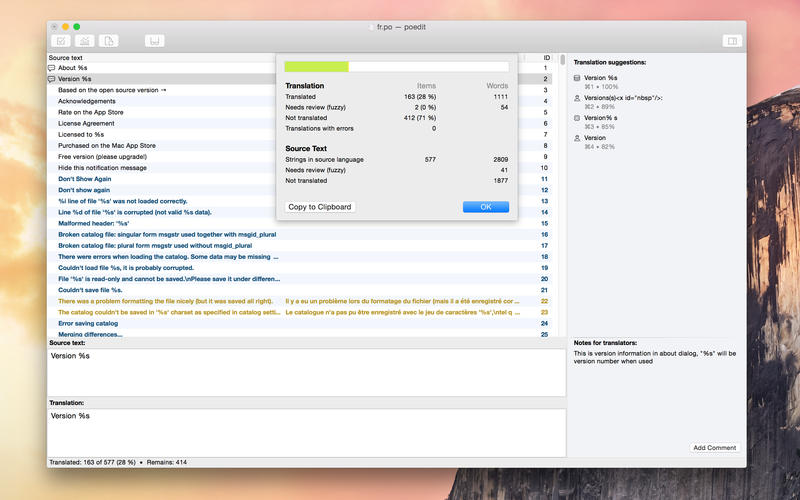
    If you are a lover of WordPress and use a third-party theme or plugin, you will be aware of the problem that arises as soon as your language is not respected, so you feel compelled to use non-Italian words for example. Of course there is a simple and effective solution to this problem, the name is Poedit.

    Poedit is provided with 2 different versions, one free and one with pay, with the free one you can do most of your translations, the paid one is for example who is a developer and wants to translate your plugin or template.

    What you need to do to make the best use of this program is to own the .po / .pot file of the plugin. Usually this file is in the “languages” folder and is easily recoverable.

    As soon as you open this file, you will see a list of words and phrases written in the original language, on the right you will need to enter your translations. For each single string you will see probable translations, so the whole process will be very fast. As soon as you finish, save the .po file and export the .mo file that will be useful for translation purposes.

    The .mo file (for example, the_name_plugin-it_IT.mo where it_IT means your translation is in Italian, so you can recognize it in WordPress) you have to insert it into the language folder, you may need to replace the author’s original.

  • Recommended Software for Developing WordPress Plugins and Themes

    Recommended Software for Developing WordPress Plugins and Themes

    If you are a WordPress lover and want to contribute to the development of an add-on module or a new template, you will definitely have basic programs that will help you in your development.

    I personally took care of developing an additional application that will be available for download on RPCreative, and then I will show you which software I have used in a completely free way.

    To develop with WordPress the basic thing before you publish a plugin is to always see its functioning, for every small update, in real time. So to speed up this factor and then remove the inconvenience of having to insert the new plugin for each update, you can use wordpress locally.

    Locally means that you can make your PC or Mac create a proper installation environment locally, so an Apache web server is a MySQL for WordPress to work.

    Let’s talk about MAMP, one of the programs that does what I have explained in a sublime and effective way. MAMP is 2 different versions, one free and one for a fee. The free one is perfect for what we need and so we do not need to buy the PRO, which contains add-ons for more professional development.

    To use MAMP you must first install it, after which you will have to insert the already unmounted WordPress folder into the htdocs folder. Now as soon as you start the server you will be able to view your site by going to http: // localhost: 8888

    What program to use to write code? Of course the best I used is the PHPStorm of the JetBrains family. Perfect in all its uses and helps a lot in compiling the code, as you can easily access and view the libraries from WordPress and then use the features that best fit them.

    PHPStorm is for itself paid, but you can enjoy a free license for students and teachers by enrolling on the site with the email that your university provides you for example.

    These two programs are the ones that most helped me in implementing the plugin, obviously for the rest of the stuff it will be good to look up the internet to find answers and advice from other experienced developers in this field.

  • Contribuisci alle traduzioni di WordPress per il Translation Day e oltre

    Contribuisci alle traduzioni di WordPress per il Translation Day e oltre

    Si avvicina uno degli eventi dedicati ai WordPress Lovers che hanno conoscenza di più lingue e desiderano contribuire alla traduzione dell’usatissimo CMS di cui stiamo parlando. Un evento dove da ogni parte del mondo è possibile inserire dei testi tradotti incrementando e migliorando le traduzioni disponibili per coinvolgere sempre più parti del mondo.

    Oltre a questo giorno, è possibile contribuire gratuitamente per questo fine andando sul sito apposito tra Traslate WordPress dove potrete inserire subito i vostri contenuti. Se possedete un tema di wordpress.org potrete tradurre il vostro tema utilizzando Jetpack oppure Glotpress, entrambi plugin gratuiti disponibili al download nella repository di WordPress.

    Man mano che traducerete i testi potreste aumentare di grado diventando un global translator.

  • Configurare correttamente Yoast SEO su WordPress

    Configurare correttamente Yoast SEO su WordPress

    Yoast SEO è un plugin gratuito per wordpress che si occupa di uno degli aspetti fondamentali per tenere in alto la posizione di un sito web nei motori di ricerca, la SEO appunto. Curare la SEO risulta essere sin dalla nascita dei motori di ricerca, una delle chiavi vincenti per migliorare il vostro indirizzamento.

    Il seguente plugin, non appena installato, deve essere correttamente configurato poichè non tutti le funzionalità disponibili sono visualizzate dopo aver attivato il plugin. Non stiamo qui a spiegarvi come fare la configurazione iniziale, poichè è molto semplice e viene fatta in pochissimo tempo. Piuttosto vi parlo di ciò che è importante fare dopo.

    Per abilitare tutte le feature ciò che dovrete fare sarà recarvi nella pagina Funzionalità, e abilitare ciò che a voi serve. Fra tutte quella che sicuramente dovrete attivare si chiama Pagine delle impostazioni avanzate, ed è quella principale per poter gestire i meta dati, la sitemap ecc. A questo punto potrete sfruttare il plugin al massimo e trovare quindi le configurazioni che più vi piacciono. Ricordatevi che per ogni articolo in basso troverete un form per modificare la descrizione e aggiungere delle parole chiave attinenti a ciò che state scrivendo.

    Di questo plugin ne esiste anche una versione a pagamento che vi consentirà l’utilizzo di altre funzionalità più approfondite che vi serviranno ancor più a migliorare il posizionamento del vostro sito web.